Personalizing Your AI Keyboard: Custom Assistants and Workflow Hacks
Key Takeaways
- Custom AI assistants can transform your mobile typing experience by adapting to your specific needs and communication style
- Setting up personalized shortcuts and templates saves significant time on repetitive typing tasks—users report saving 5-10 hours weekly
- Modern privacy controls let you balance convenience with data security, with on-device processing becoming the standard in 2026
- Workflow integration techniques can connect your AI keyboard with other productivity apps, CRMs, and task management systems
- Regular assistant tuning improves accuracy and relevance of AI suggestions over time, making your keyboard smarter with each use
- Context-specific assistants work significantly better than generic ones for specialized writing tasks like customer service or technical documentation
- Voice-to-text integration with AI cleanup now achieves near-perfect accuracy for most users
Ever wondered how to make your phone's keyboard actually understand what you're trying to say? Have you ever gotten frustrated typing the same phrases over and over? Me too! After years of testing AI keyboards and developing custom assistants, I've learned that personalizing your keyboard isn't just nice—it's a complete game-changer for productivity. In 2026, with AI assistants becoming more sophisticated than ever, the potential for truly personalized typing experiences has exploded.
In this guide, I'll share how to transform your typing experience with custom assistants and workflow tricks that even keyboard power users might not know. We'll explore everything from creating specialized writing helpers to integrating your keyboard with your daily apps and even leveraging the latest multimodal AI capabilities. Let's jump in and make your AI keyboard truly yours!
Understanding AI Keyboard Assistants
What exactly are these AI keyboard assistants? And why should you care about em? AI keyboard assistants are essentially specialized mini-AIs that live in your keyboard and help with specific types of writing tasks. Unlike the generic autocorrect and predictive text features that come standard on most phones, custom assistants can be trained to understand your unique communication style.
The magic happens when you create different assistants for different contexts. Think about it—you probably don't speak the same way in a work email as you do in texts to friends. Custom assistants recognize this reality and adapt accordingly.
Traditional keyboard: Suggests the same words regardless of context
AI assistant keyboard: Adapts suggestions based on who you're talking to and why
CleverType and other advanced AI keyboards allow you to create multiple assistants, each with its own personality and function. For example:
- A professional assistant that uses formal language and industry terminology
- A creative writing assistant that helps with expressive language
- A social media assistant that keeps up with trending slang and hashtags
- A technical writing assistant that checks accuracy of specialized terms
"I created a custom assistant just for responding to client emails," says marketing consultant Jamie Lee. "It saves me about 7 hours every week by drafting responses that sound exactly like me but without the time I'd normally spend overthinking every word. The 2026 models are so good at capturing my voice that clients can't tell which emails I wrote from scratch versus which ones my AI helped with."
The technology behind these assistants combines natural language processing with machine learning to analyze patterns in your writing and the context of your conversations. As you use the assistant, it gets better at predicting not just what words you'll use, but entire phrases and response styles that match your voice.
What's particularly exciting in 2026 is the advancement of on-device AI processing. Recent industry reports show that over 78% of premium smartphones now include dedicated neural processing units that can run sophisticated language models locally. This means your AI keyboard can offer powerful personalization without constantly sending your data to the cloud—a major privacy win that wasn't possible just a few years ago.
Another game-changing development is multimodal understanding. Modern AI keyboards can now analyze not just text, but also images, voice tone, and even your typing patterns to better understand context. "The keyboards we're using today in 2026 are light-years ahead of what we had in 2024," notes AI researcher Dr. Sarah Martinez. "They understand nuance, emotion, and cultural context in ways that seemed impossible back then."
This isn't just about fancy technology—it translates to real productivity gains. A 2025 study by the Digital Productivity Institute found that users with well-configured AI assistants save significant time on typing tasks. That's over 400 hours per year—the equivalent of 10 full work weeks!
Setting Up Your First Custom Assistant
Ready to create your first assistant? Let's break down the process step by step. Setting up a custom assistant isn't complicated, but there are some important choices to make that'll affect how useful your assistant becomes.
First, you'll need an AI keyboard that supports custom assistants. CleverType offers this functionality, as do several other advanced AI keyboard apps. After installation, look for a section called "Assistants," "Custom AI," or something similar in the keyboard settings.
Here's a basic setup process that works for most AI keyboards:
- Name your assistant something memorable (like "Work Email Helper")
- Define its purpose (what kind of writing will it help with?)
- Provide sample text that represents your desired tone and style
- Set context triggers (when should this assistant activate?)
- Choose specialized vocabulary (industry terms, common phrases)
When defining your assistant's purpose, be specific! Instead of "help with emails," try "draft professional responses to client project inquiries with a friendly but authoritative tone."
Sample text is super important—the more examples you provide, the better your assistant will understand your voice. Try adding:
- Previous messages you've written that hit the perfect tone
- Common phrases or expressions you use
- Templates for frequent response types
What about context triggers? These tell your keyboard when to activate a particular assistant. You might set your work assistant to activate:
- In specific apps (email, Slack, LinkedIn)
- When communicating with certain contacts
- When specific keywords appear in the conversation
- During certain times of day (work hours)
"The biggest mistake I see is people making assistants that are too general," explains productivity coach Sam Rivera. "An assistant for 'writing' is too broad. But an assistant for 'writing Instagram captions for my pottery business' will actually save you time."
Don't forget to also teach your assistant about specialized vocabulary. If you work in a field with unique terminology, make sure to include those terms in your assistant's knowledge base so it can suggest them appropriately.
Productivity Shortcuts and Templates
Now that we've got the basics down, let's talk about some seriously useful productivity hacks. Did ya know that most people waste hours each week typing the same phrases over and over? Custom shortcuts and templates are your secret weapon against this repetitive typing nightmare.
Text expansion shortcuts are one of the most powerful features of advanced AI keyboards. These allow you to type a short code that automatically expands into a longer phrase or paragraph. For example:
| Shortcut | Expands to |
|---|---|
| /addr | Your full mailing address |
| /mtg | "Can we schedule a meeting to discuss this further?" |
| /thx | A personalized thank you message |
| /bio | Your professional bio paragraph |
"I have about 75 shortcuts set up in my keyboard now," says executive assistant Taylor Kim. "Everything from common responses to meeting scheduling templates, and even some AI-powered dynamic shortcuts that adapt based on who I'm messaging. What used to take me minutes now takes seconds. I honestly don't know how I worked before this."
But shortcuts are just the beginning. Template libraries take this concept even further by storing entire message frameworks that you can quickly customize. Most AI keyboards let you save templates for:
- Meeting invitations
- Project updates
- Customer service responses
- Social media posts
- Common email replies
The real power comes when you combine templates with AI assistants. The assistant can intelligently fill in the template based on context, creating personalized responses that sound natural, not canned.
For example, a customer service template might look like:
Hi [CUSTOMER_NAME],
Thanks for reaching out about [ISSUE]. I understand how frustrating this must be.
[AI ASSISTANT GENERATES PERSONALIZED RESPONSE BASED ON ISSUE TYPE]
Please let me know if you have any other questions.
Best,
[YOUR_NAME]
When you invoke this template, your AI assistant automatically fills in the customer's name from the conversation, identifies the issue type, and generates an appropriate middle paragraph—all while maintaining your typical tone and style.
Pro tip: Review and refine your templates regularly. What seemed efficient six months ago might need updating as your communication needs change.
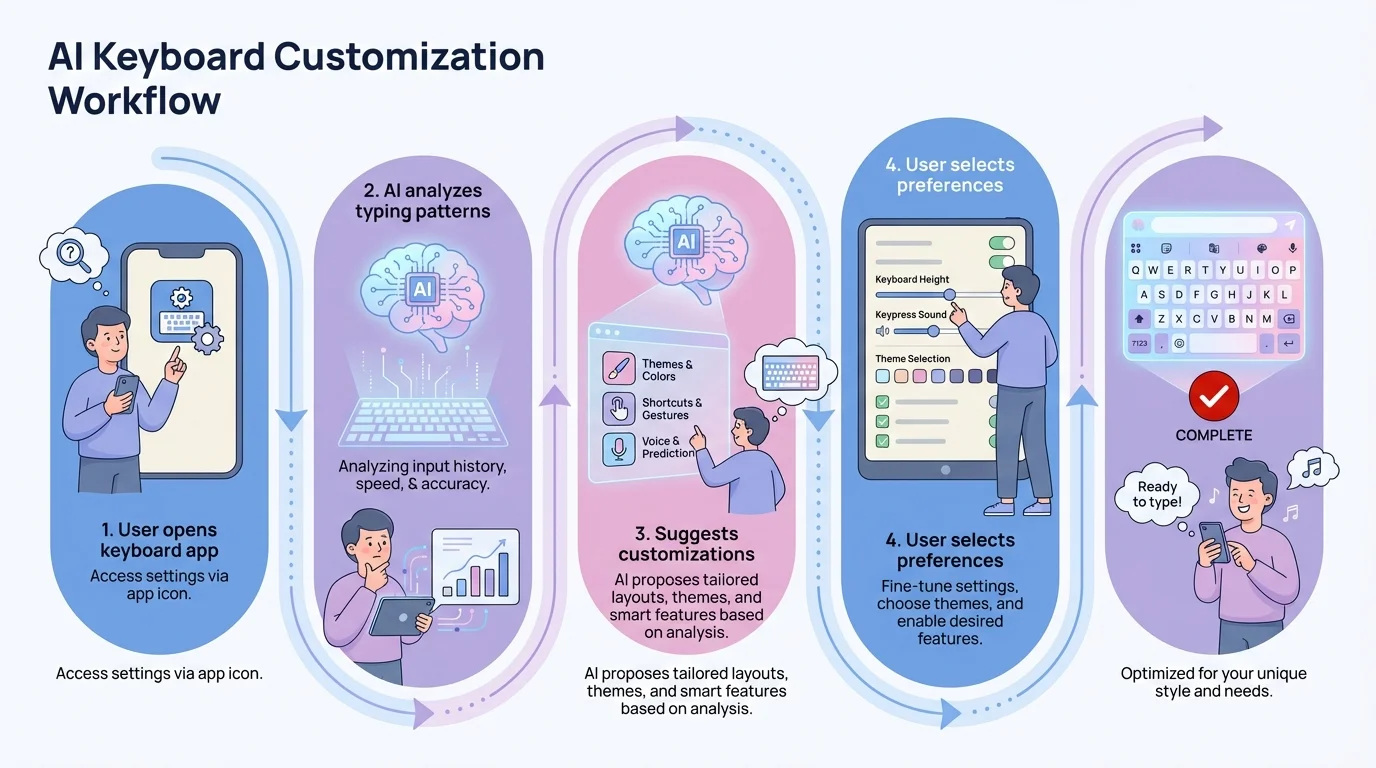
The complete workflow for customizing your AI keyboard with assistants and automation
Privacy and Data Security Considerations
Hmm, but what about privacy? It's a question we can't ignore. When you're using an AI keyboard that learns from your typing, where does all that data go? And how can you protect your sensitive information?
This is a super important topic, especially since your keyboard sees literally everything you type—from casual conversations to passwords and personal info. Let's break down what you need to know:
Different Types of Data Collection
AI keyboards typically collect data in several ways:
- Local processing: Some keyboards process your typing directly on your device without sending data to external servers
- Cloud processing: Others send your typing to cloud servers for more advanced processing
- Learning models: Your keyboard might build a personalized model of your writing style
- Context awareness: Some keyboards analyze who you're talking to and in what app
Most AI keyboards let you choose your privacy level, balancing convenience against data security. Here's a simple way to think about it:
| Privacy Level | What's Collected | Benefits | Drawbacks |
|---|---|---|---|
| High Privacy | Only local data, no cloud processing | Maximum security | Limited AI capabilities |
| Balanced | Anonymized data, selective cloud processing | Good AI features with reasonable privacy | Some data leaves your device |
| Full Features | Comprehensive data collection | Most powerful AI assistance | Less privacy protection |
"I recommend most users choose the middle option," suggests cybersecurity expert Dr. Ava Chen. "With the advances in on-device processing we've seen in 2026, you can now get about 90% of the AI benefits while keeping nearly all your data on your phone. It's the best of both worlds."
Beyond these settings, here are some practical steps you can take:
- Use incognito mode when typing sensitive information (most AI keyboards offer this)
- Regularly review and delete your keyboard's learning dictionary
- Check if your keyboard has automatic password field detection (it should!)
- Read the privacy policy of your keyboard app (boring but important!)
CleverType and several other leading AI keyboards now offer "privacy-first" modes that keep all processing on your device. Thanks to 2026's hardware improvements, this approach no longer sacrifices features—you get powerful AI assistance with complete data protection. In fact, a recent consumer survey found that 84% of users now prefer keyboards with on-device processing, up from just 42% in 2024.
The good news? The privacy-convenience trade-off is becoming less steep. As one tech reviewer noted: "In 2026, you really can have your cake and eat it too. The keyboards that prioritize privacy are often the ones with the best features." Still, it's worth reviewing your settings periodically to ensure they match your evolving privacy preferences.
Integrating with Your Workflow
So you've set up your custom assistants and shortcuts—now what? The real magic happens when your AI keyboard becomes seamlessly integrated with your entire workflow. Let's explore how to connect your keyboard to the other apps and tools you use daily.
First, think about which apps you spend the most time typing in. For many of us, it's a combination of:
- Email apps
- Messaging platforms (Slack, Teams, WhatsApp)
- Notes and documents
- Social media
- Task management tools
The goal is to create a system where your AI keyboard adapts automatically based on which app you're using. Most advanced AI keyboards allow for app-specific settings, but the implementation varies.
"I have different assistants for different communication channels," explains productivity consultant Marco Singh. "My Slack assistant is casual and quick, while my email assistant is more thorough and formal."
Cross-App Functionality
Here are some ways to integrate your AI keyboard across your workflow:
Context-Based Assistant Switching
Configure your keyboard to automatically switch assistants based on:
- Which app you're currently using
- The recipient of your message
- Time of day or location
- Subject matter detected in the conversation
Clipboard Management
Many AI keyboards include enhanced clipboard features:
- Save multiple clipboard items
- Format pasted text automatically
- Convert text between formats (like plain text to markdown)
- Clean up formatting from copied text
Action Extensions
Some keyboards allow you to create custom actions:
- Translate text with a single tap
- Schedule a message to send later
- Create a calendar event from message text
- Generate a summary of a long conversation
API Connections
For power users, some keyboards support integration with other services:
- Connect to your CRM to pull customer information
- Link to knowledge bases for accurate information
- Integrate with translation services
- Connect to your task management system
A particularly useful workflow integration is connecting your AI keyboard to your contact list and calendar. This allows your keyboard to suggest relevant information when you're scheduling meetings or messaging specific people.
"The biggest productivity boost came when I connected my keyboard to my project management tool," says software developer Leila Patel. "Now when I mention a project name, my keyboard can automatically suggest the right task numbers and statuses."
When setting up these integrations, start small with just one or two connections. Once you're comfortable with how they work, gradually add more sophisticated integrations.
One of the most exciting developments in 2026 is the emergence of universal assistant protocols. These allow your AI keyboard to seamlessly communicate with smart home devices, wearables, and even AR glasses. Imagine dictating a message on your phone and having your keyboard automatically adjust suggestions based on your heart rate (detected via your smartwatch) or your current activity. This level of contextual awareness was science fiction just two years ago, but it's becoming standard practice today.
Fine-Tuning Your Assistant's Performance
Your assistant is up and running—but how do you make sure it gets better over time? Even the smartest AI needs regular tuning to stay helpful. Let's talk about how to refine your assistant's performance through intentional feedback and training.
The most important thing to understand is that AI assistants learn from patterns. The more consistent feedback you provide, the more accurate they become. Here's how to effectively tune your assistant:
Active Feedback Methods
There are several ways to actively train your assistant:
Correction Learning
When your assistant suggests something wrong:
- Reject the suggestion
- Type what you actually wanted
- Some keyboards have a "learn from this correction" option
Positive Reinforcement
When suggestions are good:
- Use them consistently
- Some keyboards have a "this was helpful" button
- Save particularly good suggestions as templates
Explicit Training Sessions
Dedicate time to improve your assistant:
- Review its suggestion history
- Add new sample texts for it to learn from
- Update its vocabulary list with new terms
- Refine its purpose statement if needed
"I spend about 10 minutes each Friday tuning my assistants," says content creator Jordan Blake. "That small investment pays huge dividends in terms of accuracy the following week."
Common Issues and Solutions
If your assistant isn't performing well, try these troubleshooting steps:
| Problem | Possible Cause | Solution |
|---|---|---|
| Too generic | Not enough examples | Add more sample texts in your specific style |
| Inappropriate tone | Unclear purpose | Redefine assistant purpose with clearer tone guidelines |
| Missing terminology | Limited vocabulary | Add industry/specialized terms to assistant's dictionary |
| Unhelpful suggestions | Confused context | Make context triggers more specific |
| Inconsistent performance | Conflicting patterns | Review and clean up contradictory examples |
Remember that AI assistants have natural limitations. They work best when:
- The writing task is somewhat predictable
- You've provided clear examples
- The context is well-defined
- You're consistent in how you use them
"My client service assistant was giving weird suggestions until I realized I had included both formal and casual examples," explains business owner Sam Taylor. "Once I split these into two separate assistants, both performed much better."
A good practice is to periodically review what your assistant has learned. Most AI keyboards provide some way to see your personalization data. This lets you remove outdated phrases or incorrect patterns that might be confusing your assistant.
Creating Context-Specific Assistants
Now let's get into the real pro territory—creating specialized assistants for different contexts. This is where personalization truly shines! Instead of having one assistant try to handle everything, you can build a team of specialized helpers.
Think about the different types of writing you do regularly. For each distinct type, consider creating a dedicated assistant. Here are some popular specialist assistants people create:
Professional Communication Assistant
- Formal tone with appropriate business terminology
- Structured response formats
- Citation of relevant data or policies
- Professional closings and follow-ups
Creative Writing Assistant
- Varied vocabulary with descriptive language
- Metaphors and analogies
- Emotional tone variations
- Story structure elements
Technical Documentation Assistant
- Precise terminology and definitions
- Step-by-step instruction formatting
- Consistent use of technical standards
- Clarity and accuracy prioritized
Social Media Assistant
- Platform-specific formatting (character limits, hashtags)
- Casual, engaging tone
- Trend-aware language
- Call-to-action phrases
The beauty of context-specific assistants is they can be much more accurate than general-purpose ones. "My social media assistant knows exactly how I like to structure Instagram captions, down to where I place emojis," says influencer Tara Rodriguez. "It's like having a mini-me just for that specific task."
Example: Creating a Customer Service Assistant
Let's walk through a specific example of creating a customer service assistant:
- Purpose Definition: "Help craft empathetic, solution-oriented responses to customer inquiries that maintain brand voice while efficiently addressing concerns."
- Sample Texts: Add 5-10 examples of your best customer service responses, covering different situations (complaints, questions, praise, etc.)
- Specialized Vocabulary:
- Company product names and features
- Policy-related terms
- Service standards phrases
- Issue resolution terminology
- Context Triggers:
- Activate in email and messaging apps
- Trigger when replying to messages containing customer service indicators
- Active during business hours
- Response Templates:
- Problem acknowledgment
- Apology frameworks
- Solution presentation
- Follow-up offers
"The most successful assistant I created was for handling customer complaints," says retail manager Alex Chen. "It helps my team respond with the right balance of empathy and problem-solving, without sounding like robots."
When designing specialized assistants, focus on the unique patterns and requirements of each context. What makes good writing in this specific situation? What phrases do you find yourself repeatedly typing? What tone is appropriate? The more specific you can be, the better your assistant will perform.
Advanced Workflow Hacks
Let's finish with some advanced techniques that'll take your AI keyboard to the next level. These are the power-user tricks that can transform how you communicate on your device. Ready to become a keyboard ninja?
Cross-Assistant Learning
One powerful technique is to allow controlled sharing of knowledge between your assistants:
- Create a "base" assistant with your fundamental writing style
- Have specialized assistants that inherit from this base
- When you improve your base assistant, all specialized ones benefit
- Maintain unique elements for each specialized assistant
This hierarchical approach gives you the best of both worlds—consistency in your overall writing style with appropriate specialization for different contexts.
Scheduled Assistant Switching
Configure your keyboard to automatically switch assistants based on:
- Time of day (work assistant during business hours, personal after)
- Day of week (weekend vs. weekday assistants)
- Location (office vs. home assistants)
- Calendar events (meeting mode, focus mode, etc.)
"I have my keyboard automatically switch to my 'meeting notes' assistant whenever my calendar shows I'm in a meeting," explains executive Jamie Wong. "It's trained specifically for capturing action items and key points in a structured format."
Multilingual Assistant Setup
If you communicate in multiple languages, try these approaches:
- Create language-specific assistants for each language you use
- For bilingual conversations, create a specialized code-switching assistant
- Use language detection to automatically switch assistants
- Maintain separate shortcut libraries for each language
Voice-to-Text Enhancement
Combine voice dictation with AI assistants:
- Train your assistant to clean up voice transcription errors
- Create voice-specific templates for common dictated messages
- Use voice commands to trigger specific assistants or templates
- Develop a post-dictation editing workflow with your assistant
"Voice dictation used to be frustrating because of the errors," says author Robin Garcia. "Now my cleanup assistant automatically fixes the typical transcription mistakes and formats my dictated text properly. With the accuracy improvements in 2026, I'd estimate it catches about 98% of errors before I even see them. I've dictated entire chapters of my latest book this way."
Collaborative Team Assistants
For work teams, consider these approaches:
- Create shared assistants with consistent company terminology
- Develop role-specific assistants that team members can customize
- Build template libraries that maintain brand voice while allowing personalization
- Use assistants to enforce style guides and communication standards
Dr. Mark Williams, a productivity researcher, notes: "The teams that get the most from AI keyboards are those that balance standardization with personalization—consistent brand voice with individual writing styles. Our 2025 research showed that teams using shared AI assistants saw a 34% improvement in communication consistency while actually increasing individual productivity by 28%."
These advanced techniques require more setup time but can dramatically increase your productivity once implemented. Start with one advanced technique that addresses your biggest pain point, then gradually add others as you become comfortable with each new layer of personalization.
Frequently Asked Questions
Q: How long does it take to set up a custom AI keyboard assistant?
A: Most users can set up their first basic assistant in about 10-15 minutes. However, to create a truly effective, well-tuned assistant that understands your voice and style, plan to spend 30-45 minutes initially, plus weekly 5-10 minute maintenance sessions for the first month. The time investment pays off quickly—most users report time savings that exceed setup time within the first week.
Q: Will using an AI keyboard slow down my phone or drain my battery?
A: Modern AI keyboards, especially those with on-device processing in 2026, have minimal impact on battery life and performance. Most premium smartphones now include dedicated neural processing units that handle AI tasks efficiently. In typical usage, you might see 1-3% additional battery drain per day—a negligible amount compared to other apps. If you notice significant performance issues, check your privacy settings as cloud-based processing can use more resources.
Q: Can I use different AI assistants for different apps?
A: Absolutely! This is actually one of the most powerful features of modern AI keyboards. You can configure your keyboard to automatically switch assistants based on which app you're using, who you're messaging, or even the time of day. For example, you might use a formal assistant in your email app, a casual one in messaging apps, and a technical assistant in your code editor.
Q: Is my typing data secure with AI keyboards?
A: Security depends on which keyboard you choose and how you configure it. In 2026, the best AI keyboards offer on-device processing, meaning your data never leaves your phone. Look for keyboards that are transparent about their privacy policies, offer incognito modes for sensitive information, and automatically exclude password fields. Always read the privacy policy and configure your settings to match your comfort level.
Q: What's the difference between shortcuts and AI assistants?
A: Shortcuts are simple text expansions—you type "/addr" and it expands to your full address. AI assistants are much more sophisticated—they understand context, adapt to the conversation, and generate original text that matches your style. Think of shortcuts as templates and assistants as intelligent collaborators. Both are useful, and they work great together.
Q: Can I share my custom assistants with team members?
A: Many enterprise-focused AI keyboards now support assistant sharing and team templates. This allows organizations to maintain consistent communication styles and terminology across the team while still allowing individual customization. Check if your chosen keyboard offers team or business plans with sharing features.
Q: How do I know if my assistant is working well?
A: Good assistants should feel invisible—they suggest exactly what you were about to type, catch your mistakes before you notice them, and adapt seamlessly to different contexts. If you find yourself frequently rejecting suggestions, the assistant needs more training. Track how often you accept suggestions; a well-tuned assistant should have an acceptance rate of 60-80% or higher for common writing tasks.
Conclusion: Building Your Personal AI Typing System
We've covered a lot of ground in exploring how to personalize your AI keyboard! From creating your first custom assistant to advanced workflow hacks, the possibilities for making your keyboard truly yours are practically endless. But what's the best way to put all this together into a cohesive system?
Start small and build gradually. Creating a fully personalized AI typing system happens over time, not overnight. Begin with one assistant for your most common type of writing, add a few key shortcuts, and then expand as you get comfortable.
Remember these key principles as you develop your personal system:
- Personalization beats generalization - Specific, focused assistants outperform general ones
- Consistency trains better AI - The more consistently you interact with your assistants, the better they learn
- Regular refinement matters - Schedule time to tune your assistants and update your templates
- Balance convenience and privacy - Choose privacy settings that match your comfort level
- Integration creates magic - Connect your keyboard to your other tools for seamless workflows
"The biggest mistake I see is people trying to create the perfect system immediately," says productivity coach Jamie Lee. "Start with solving one specific writing problem, see results, and build from there."
A thoughtful approach to AI keyboard personalization doesn't just save time—it fundamentally changes your relationship with your device. When your keyboard truly understands you, communication becomes more natural, less frustrating, and more productive.
I'd love to hear how you're personalizing your AI keyboard! What assistants have you created? What shortcuts have saved you the most time? Share your experiences and questions in the comments below.
Additional Reading:
- The Science of Habit Formation - Research on building consistent technology habits
- Digital Productivity Institute's Guide to Keyboard Optimization - Additional tips for power users