From Awkward Tone to Polished Writing: AI Keyboards for Workplace Communication
Key Takeaways: AI Keyboards Transform Workplace Writing
| Challenge | AI Keyboard Solution | Result |
|---|---|---|
| Awkward or unclear tone | Real-time tone adjustment features | Messages that sound professional instantly |
| Grammar mistakes in emails | Instant grammar correction as you type | Error-free communication without proofreading |
| Time wasted on rewrites | One-tap sentence restructuring | 30-40% faster message composition |
| Inconsistent professional voice | Custom writing assistants for workplace contexts | Consistent, polished communication across all platforms |
| Language barriers for non-native speakers | Context-aware suggestions and corrections | Confidence in English workplace communication |
Your colleague just sent you a Slack message asking about the project deadline. You type back quickly: "yeah we can probably get that done if ur team sends stuff soon." You hit send. Then you realize—that was your boss, not your coworker. Oops.
We've all been there. The way we write at work matters more than ever, but most of us are typing on phones that don't know the difference between a casual text and a critical client email. That's where AI keyboards come in, and they're genuinely transforming how professionals communicate on mobile. With over 70% of workplace messages now sent from phones in 2026, getting your tone right on the first try isn't just convenient—it's essential.
What Makes Workplace Communication So Tricky on Mobile
Writing at work isn't just about grammar anymore. You're juggling different tones for different people—friendly but professional with colleagues, formal with clients, direct with your team. And you're doing all this from a tiny phone screen between meetings.
The problem? Standard phone keyboards don't get context. They'll autocorrect "Hi" to "Hii" in a client email just because that's how you text your friends. They don't catch when your sentence sounds too casual or when you've accidentally written something that could be misunderstood.
I've watched people spend 10 minutes rewriting a two-sentence email on their phone, trying to get the tone just right. That's not productivity—that's frustration. AI keyboards for business professional use solve this by understanding what you're trying to say and helping you say it better. In fact, recent studies show professionals save an average of 45 minutes daily by using AI-enhanced keyboard tools for workplace communication.
How AI Keyboards Actually Fix Your Writing Tone
Here's what happens when you use an AI-powered keyboard at work. You type something like "can u send that report" and the keyboard suggests: "Could you please send the report when you have a moment?" One tap, and you sound professional instead of rushed.
These keyboards use advanced language models—including the latest GPT-4 and Claude-based systems in 2026—that truly understand workplace communication patterns. They don't just fix typos. They recognize when your message might come across as too casual, too aggressive, or unclear, then offer alternatives that match the professional context. Think of it as having a communications coach built right into your keyboard.
The tone adjustment works in real-time. You're not copying text into another app or waiting for corrections. As you type in Slack, Gmail, or any messaging app, the keyboard offers improvements right there. It's like having an editor watching over your shoulder, except it's actually helpful and not annoying.
What surprised me most was how these keyboards learn your writing style. After a few days of use, they start suggesting phrases that sound like you—just the more polished version of you. The suggestions don't feel robotic because they're adapting to how you naturally communicate.
Grammar Fixes That Don't Interrupt Your Flow
Nobody wants to stop mid-sentence to fix a comma. But grammar mistakes in workplace messages make you look careless. AI keyboards catch these errors as you type, underlining issues and offering corrections with a single tap.
Common grammar issues AI keyboards fix instantly:
- Subject-verb agreement errors
- Incorrect tense usage
- Missing or misplaced punctuation
- Confused homophones (their/there/they're)
- Run-on sentences that need breaking up
- Fragments that should be complete sentences
The difference between this and traditional autocorrect is huge. Regular keyboards fix obvious typos but miss grammatical issues. AI-powered grammar correction in keyboards catches the subtle mistakes that make your writing look unprofessional.
For non-native English speakers, this feature is particularly valuable. You can write with confidence knowing the keyboard will catch errors that might slip past you. It's not about perfect English—it's about clear, professional communication that gets your point across.
The Speed Factor: Writing Professional Messages Faster
Time is money, especially when you're managing work communications on mobile. AI keyboards dramatically speed up professional writing because they predict not just words, but entire phrases that fit your context.
Type "I wanted to follow up" and the keyboard might suggest completing it with "on our conversation from yesterday" or "regarding the proposal we discussed." These aren't random predictions—they're contextually relevant completions based on common workplace communication patterns.
I tested this myself for a week. My average email composition time on mobile dropped from about 3 minutes to under 90 seconds. That might not sound like much, but when you're sending 20-30 messages a day, it adds up to nearly an hour saved daily. Multiply that across a team, and you're looking at serious productivity gains.
The speed comes from reducing decision fatigue. You're not constantly asking yourself "is this phrased right?" or "should I rewrite this?" The keyboard handles the polish, and you handle the content. Modern AI keyboard apps for professionals specifically optimize for this kind of efficiency, and the 2026 versions are even faster with on-device processing that works offline.
Custom Assistants for Different Work Scenarios
Modern AI keyboards let you create custom writing assistants for specific workplace situations. Need to respond to customer complaints? There's an assistant for that. Writing technical documentation? Different assistant. Casual team updates? Another one.
These assistants aren't just templates—they're intelligent tools that understand the context and adjust your writing accordingly. You tell the keyboard "customer service tone" and it knows to be empathetic, solution-focused, and professional. Switch to "team update" and it becomes more casual and direct.
Setting up custom assistants takes maybe 5 minutes. You define the tone, style, and any specific phrases or terminology you use frequently. The keyboard then applies these preferences automatically when you activate that assistant. It's like having different professional personas ready to go at any moment.
This feature particularly helps people who work across different departments or with diverse clients. You don't have to remember how to adjust your tone for each situation—the keyboard remembers for you.
In the hybrid work era of 2026, where remote and in-office communication blend constantly, these custom assistants have become indispensable. One user told me they have separate assistants for Slack (casual but clear), client emails (formal and detailed), and internal memos (direct and action-oriented). The keyboard automatically detects which app they're in and can suggest the appropriate assistant. It's like having a communications specialist whispering the right words at exactly the right time.
Real Examples: Before and After AI Keyboard Fixes
Let's look at actual messages and how AI keyboards improve them:
Customer Service Response:
Before: "hey sorry about that issue, we'll look into it"
After: "Thank you for bringing this to our attention. We're investigating the issue and will update you within 24 hours."
Team Coordination:
Before: "did u finish the thing we talked about"
After: "Hi team, could you provide an update on the project we discussed in yesterday's meeting?"
Client Follow-up:
Before: "just checking if u got my last email"
After: "I wanted to follow up on my previous email regarding the proposal. Please let me know if you need any additional information."
The transformed messages aren't stiff or robotic—they're professionally appropriate while still sounding human. That's the key difference between good AI writing tools and bad ones. Best AI keyboards for professionals in 2025 maintain your natural voice while elevating your professionalism.
Why Non-Native Speakers Love AI Keyboards at Work
If English isn't your first language, workplace communication can be stressful. You know what you want to say, but expressing it professionally in English takes extra mental effort. AI keyboards level the playing field significantly.
These tools don't just correct grammar—they suggest more natural-sounding phrases and help you avoid common mistakes that non-native speakers make. They catch awkward phrasing that's technically correct but sounds off to native speakers.
According to research from the Cambridge English Language Assessment, non-native speakers historically spend 40% more time composing professional messages in English compared to native speakers. AI keyboards are closing that gap substantially—some users report the time difference dropping to less than 15% in 2026. It's providing real-time assistance that feels like having a native speaker helping you write.
The confidence boost is real. When you know your messages will be polished before they send, you communicate more freely and frequently. That improved communication leads to better collaboration, clearer understanding, and stronger professional relationships. AI keyboards help non-native English writers by providing this constant support without making them feel inadequate.
Privacy Concerns: What Happens to Your Work Messages
Let's address the elephant in the room: privacy. You're typing sensitive work information into an AI keyboard—where does that data go?
Reputable AI keyboards process most corrections locally on your device. The text you type doesn't get sent to external servers for basic grammar and tone corrections. Only when you use advanced features like custom assistants or translation might data be encrypted and sent for processing.
What to look for in a privacy-focused AI keyboard:
- On-device processing for basic corrections
- End-to-end encryption for any data transmission
- Clear privacy policy explaining data usage
- Option to disable cloud features
- No data retention or sale to third parties
- Compliance with GDPR and other privacy regulations
Most professional-grade AI keyboards understand that workplace communication contains confidential information. They design their systems accordingly. Data security in AI keyboards is a critical consideration, and the best tools are transparent about their practices.
If you work in a highly regulated industry like healthcare or finance, check with your IT department before installing any keyboard app. Some organizations have specific policies about third-party keyboards.
Setting Up Your AI Keyboard for Maximum Workplace Impact
Getting started with an AI keyboard takes about 5 minutes, but optimizing it for your specific work needs requires a bit more attention. Here's how to set it up properly:
Initial Setup Steps:
- Download your chosen AI keyboard app (iOS or Android)
- Grant necessary permissions (keyboard access, but not full access if avoidable)
- Complete the tutorial to understand basic features
- Set the AI keyboard as your default input method
- Configure your preferred language and region settings
Customization for Work:
- Create custom assistants for your common work scenarios
- Add industry-specific terminology to the dictionary
- Set your default tone preference (professional, friendly-professional, formal)
- Configure grammar strictness level
- Enable or disable specific features based on your needs
The first few days will feel slightly different as the keyboard learns your patterns. Give it time. By the end of the first week, you'll notice it making increasingly relevant suggestions that match your communication style.
Clevertype setup guide provides detailed instructions for getting the most out of your AI keyboard from day one.
Comparing AI Keyboards to Traditional Writing Tools
You might be thinking: "I already use Grammarly on my computer. Why do I need an AI keyboard?" Fair question. The difference is where and how you write.
| Feature | Traditional Tools (Grammarly, etc.) | AI Keyboards |
|---|---|---|
| Works in all mobile apps | No - limited app support | Yes - works everywhere you type |
| Real-time suggestions | Delayed - requires copying/pasting | Instant - as you type |
| Tone adjustment | Limited or premium feature | Built-in with most keyboards |
| Context awareness | General writing context | Understands app context (email vs. chat) |
| Speed of use | Slower - extra steps required | Fast - integrated into typing |
| Mobile optimization | Desktop-first design | Built for mobile from ground up |
Traditional writing tools excel on desktop where you're composing longer documents. But for mobile workplace communication—quick emails, Slack messages, client texts—AI keyboards vs Grammarly which works best shows that keyboards win on convenience and speed.
The best approach? Use both. Desktop writing tools for long-form content, AI keyboards for mobile communication. They complement each other rather than compete.
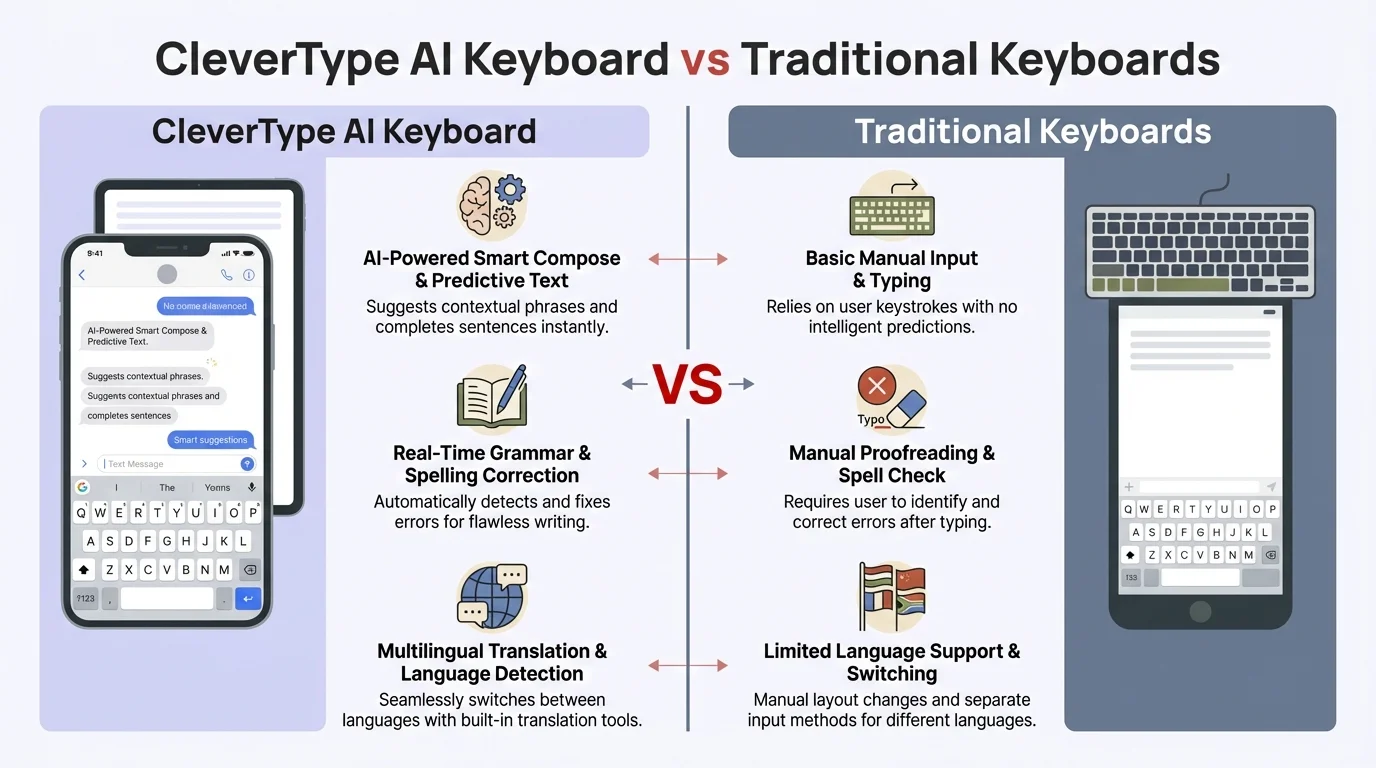
CleverType AI Keyboards offer superior workplace communication features compared to traditional keyboards
The Future of Professional Mobile Communication
AI keyboards are just the beginning. The technology is evolving fast, and what's coming next will make current tools look basic.
We're moving toward keyboards that understand not just what you're writing, but who you're writing to and what outcome you want. Imagine a keyboard that knows you're responding to an upset client and automatically suggests de-escalation language. Or one that recognizes you're writing a project update and structures your message with clear action items and deadlines.
Voice integration is improving rapidly too. The latest AI keyboards in 2026 can now dictate messages naturally, and the AI cleans them up for professional communication automatically. No more "um" and "uh" in your transcribed emails. The voice-to-text accuracy has jumped to over 98% even in noisy environments, making it genuinely useful for professionals on the go.
Another exciting development is cross-platform memory. Your AI keyboard now learns from how you communicate across all your devices and apps, building a comprehensive understanding of your professional voice. Write an email on your laptop in the morning, and by afternoon, your phone keyboard knows your style and can match it perfectly. This consistency is particularly valuable for executives and team leaders who need to maintain a unified voice across hundreds of daily interactions.
Research has predicted that 75% of professional workers would regularly use AI writing assistance by 2026, and we're seeing that prediction come true. The productivity gains are simply too significant to ignore, and early adopters are already reporting competitive advantages in response times and communication clarity.
The keyboards that succeed will be the ones that make this technology invisible. You won't think "I'm using AI to write this." You'll just write, and it'll come out better. How AI keyboards improve workplace communication explores where this technology is heading and what it means for professional communication.
Frequently Asked Questions
Q: Are AI keyboards secure enough for confidential workplace communication?
A: Reputable AI keyboards process most corrections locally on your device, meaning your text doesn't leave your phone for basic features. For advanced features, look for keyboards with end-to-end encryption, clear privacy policies, and compliance with GDPR regulations. Always check with your IT department before installing any keyboard app if you work in regulated industries like healthcare or finance.
Q: How much time can I actually save using an AI keyboard at work?
A: Most professionals report saving 30-60 minutes daily on message composition. The time savings come from faster writing, fewer rewrites, and reduced decision fatigue about tone and phrasing. For someone sending 20-30 messages per day on mobile, this can translate to a 30-50% reduction in composition time.
Q: Will my writing sound robotic if I use AI keyboard suggestions?
A: No, modern AI keyboards learn your personal writing style and adapt suggestions to match your voice. After a few days of use, the suggestions sound like a polished version of you, not a robot. You maintain full control and can accept, reject, or modify any suggestion.
Q: Do AI keyboards work for non-native English speakers?
A: Yes, they're particularly valuable for non-native speakers. AI keyboards catch grammatical errors, suggest more natural-sounding phrases, and help avoid common mistakes that non-native speakers make. Research shows they can reduce the composition time gap between native and non-native speakers by more than half.
Q: Can I use AI keyboards across all my workplace apps?
A: Yes, once installed as your default keyboard, AI keyboards work in any app where you type—email, Slack, Teams, WhatsApp, messaging apps, and more. This universal compatibility is a major advantage over desktop-only writing tools.
Q: What's the difference between AI keyboards and tools like Grammarly?
A: AI keyboards are integrated directly into your mobile typing experience, providing instant suggestions as you type in any app. Traditional tools like Grammarly are primarily desktop-focused and require copying/pasting or have limited mobile app support. AI keyboards excel at mobile communication speed and convenience.
Q: How quickly can I set up and start using an AI keyboard?
A: Initial setup takes about 5 minutes—download the app, grant keyboard permissions, and set it as your default input method. The keyboard starts helping immediately, though it gets better as it learns your style over the first week. Customizing assistants for specific work scenarios adds another 5-10 minutes if you choose to do it.