Create Custom Prompts: How to Build Your Own AI Keyboard Assistant
Key Takeaways
- Custom AI prompts transform your mobile typing by creating personalized assistants that understand your unique communication style
- Build specialized prompts for different contexts—whether you're handling business emails, creative writing, or academic work
- Modern AI keyboards in 2026 offer advanced prompt customization with multi-modal capabilities and on-device processing
- Effective prompts combine clear instructions, relevant context, and your preferred output format
- Custom assistants can save up to 70% of typing time while maintaining your authentic voice
- Privacy-first designs now allow prompt customization without compromising your data security
- Iterative refinement turns good prompts into powerful productivity tools over time
Think your keyboard could be smarter? In 2026, AI keyboards have evolved way beyond simple autocorrect—they're now personal writing assistants that adapt to how you communicate. Whether you're drafting emails, responding to messages, or creating content, custom prompts let you build an AI assistant that actually gets your voice.
I've been using AI keyboards since they first emerged, and the customization features available today are mind-blowing. What used to take trial and error now happens almost instantly, thanks to better AI models and smarter interfaces. Let me show you how to build custom prompts that'll genuinely change how you type.
Understanding AI Keyboard Assistants and Custom Prompts
Custom prompts are essentially instructions that teach your AI keyboard assistant how to respond in specific situations. They're the secret sauce that transforms a generic typing helper into a personalized writing companion that understands your needs.
In 2026, AI keyboard assistants have become incredibly sophisticated. They can generate text, refine your writing, adapt tone, and handle complex multi-step tasks—all based on the prompts you create. These assistants leverage advanced natural language processing to understand context and intent. Think of prompts as training your personal assistant: the clearer your instructions, the better the results you'll see.
While apps like CleverType and other AI keyboards for iOS come with solid default prompts, the real power emerges when you build your own. Custom prompts let you handle your unique writing scenarios—from responding to specific client types to maintaining brand voice across different platforms.
Custom prompts can be simple like "summarize this email" or complex like "write a professional response to this client inquiry, maintaining a friendly tone while addressing their concerns about pricing." The more specific you are, the better results you'll get.
The big difference between default and custom prompts? Default ones are general-purpose, while custom ones are built specifically for your unique writing situations. It's like having a personal assistant who knows exactly how you like things done.
Benefits of Creating Your Own AI Prompts
Why should you bother creating custom prompts? Aren't the built-in ones good enough? Well, there's a bunch of reasons why custom prompts are worth the effort.
First off, custom prompts save tons of time. I used to spend ages writing similar emails or messages, but now I just trigger my custom prompt and boom—first draft done in seconds. Studies from early 2026 show that professionals using custom AI prompts reduce their typing time by 65-75% for routine communications, freeing up hours each week for more meaningful work. This productivity boost aligns with broader research on generative AI's impact on productivity across various industries.
They also help maintain consistency in your writing. If you're managing social media accounts or sending lots of business emails, custom prompts ensure your tone and style stay consistent across all communications.
Another huge benefit? Custom prompts reduce mental fatigue. Don't ya hate having to think about how to word that same type of message for the hundredth time? With custom prompts, you offload that mental work to your AI assistant.
Here's something that really stands out in 2026: custom prompts now work across multiple apps seamlessly. Instead of recreating your writing style in each platform, your personalized prompts can follow you from email to messaging to social media. This cross-platform consistency wasn't possible just a year ago, but the latest AI keyboards have made it a reality.
What's more, modern custom prompts can learn from your feedback. When you edit an AI-generated response, the keyboard remembers your preferences and refines future outputs. It's like having an assistant who actually listens and improves—something that makes the whole experience feel surprisingly human.
| Default Prompts | Custom Prompts |
|---|---|
| General purpose | Tailored to specific scenarios |
| Basic capabilities | Complex, multi-step instructions |
| Same results for everyone | Personalized to your style |
| Limited context awareness | Can include your personal context |
| One-size-fits-all | Optimized for your specific needs |
I've created custom prompts for everything from responding to meeting requests to drafting creative stories with my kids. The possibilities are literally endless.
How to Access Prompt Customization in Popular AI Keyboards
So you're convinced and wanna start creating custom prompts. But how do you actually access this feature in your keyboard app? Let's break it down for the most popular AI keyboards.
In CleverType, you'll find the custom prompt feature in Settings → AI Assistants → Custom Prompts. The 2026 interface is incredibly intuitive—you can create prompts, organize them by context, and even use visual builders for complex workflows. What I love most is the shortcut system that lets you trigger prompts with a simple gesture or keyword, making the whole process feel natural.
For other AI keyboards on Android, the experience has become much more standardized in 2026. Most premium keyboards now offer prompt customization as a core feature rather than a buried setting. Look for sections labeled "AI Settings," "Custom Assistants," or "Prompt Library." The good news? Many apps now offer free tiers with basic customization, though advanced features typically require a subscription.
If you're using a ChatGPT keyboard, you'll typically find prompt customization in the ChatGPT integration settings. These often allow more complex prompts since they're powered by more advanced language models.
One tip I've found helpful: Take screenshots of the customization screens when you first explore them. The interfaces can sometimes be a bit confusing, and having visual references helps when you want to make changes later.
Most AI keyboards also offer template libraries where you can browse pre-made custom prompts created by other users. These are great starting points that you can then modify to suit your specific needs rather than building everything from scratch.
Crafting Effective Custom Prompts: Step-by-Step Guide
Alright, now for the fun part - actually creating your custom prompts! This is where the magic happens, but it does take a bit of practice to get right.
Step 1: Identify Your Needs
Start by thinking about what types of messages you send frequently. Do you often write customer service responses? Team updates? Creative content? Make a list of these common scenarios. For me, I realized I was writing similar email responses to clients, social media posts, and meeting summaries almost every day.
Step 2: Structure Your Prompt
A good custom prompt has three main parts:
- Clear instruction - What exactly do you want the AI to do?
- Context - Any background info the AI needs to know
- Output format - How should the response be structured?
Here's an example:
Instruction: Write a polite response to a client inquiry
Context: I run a graphic design business and need to maintain professional relationships
Output format: Start with a greeting, address their specific question, offer next steps, and end with my standard signature
Step 3: Add Specificity and Constraints
The more specific you are, the better. Include details like:
- Tone (formal, casual, friendly, etc.)
- Length (short and sweet or detailed)
- Key points to include or avoid
- Examples of preferred phrasing
One trick I've learned is to include phrases like "Write in my voice" followed by examples of how you typically write. This helps the AI match your personal style.
Step 4: Test and Refine
Your first attempt probably won't be perfect, and that's okay! Test your prompt with different scenarios and refine it based on the results. I usually go through 3-4 iterations before I'm happy with a custom prompt.
Pay attention to where the AI misunderstands or produces awkward text. Those are clues that your prompt needs clarification. Sometimes adding just a few words can dramatically improve the results.
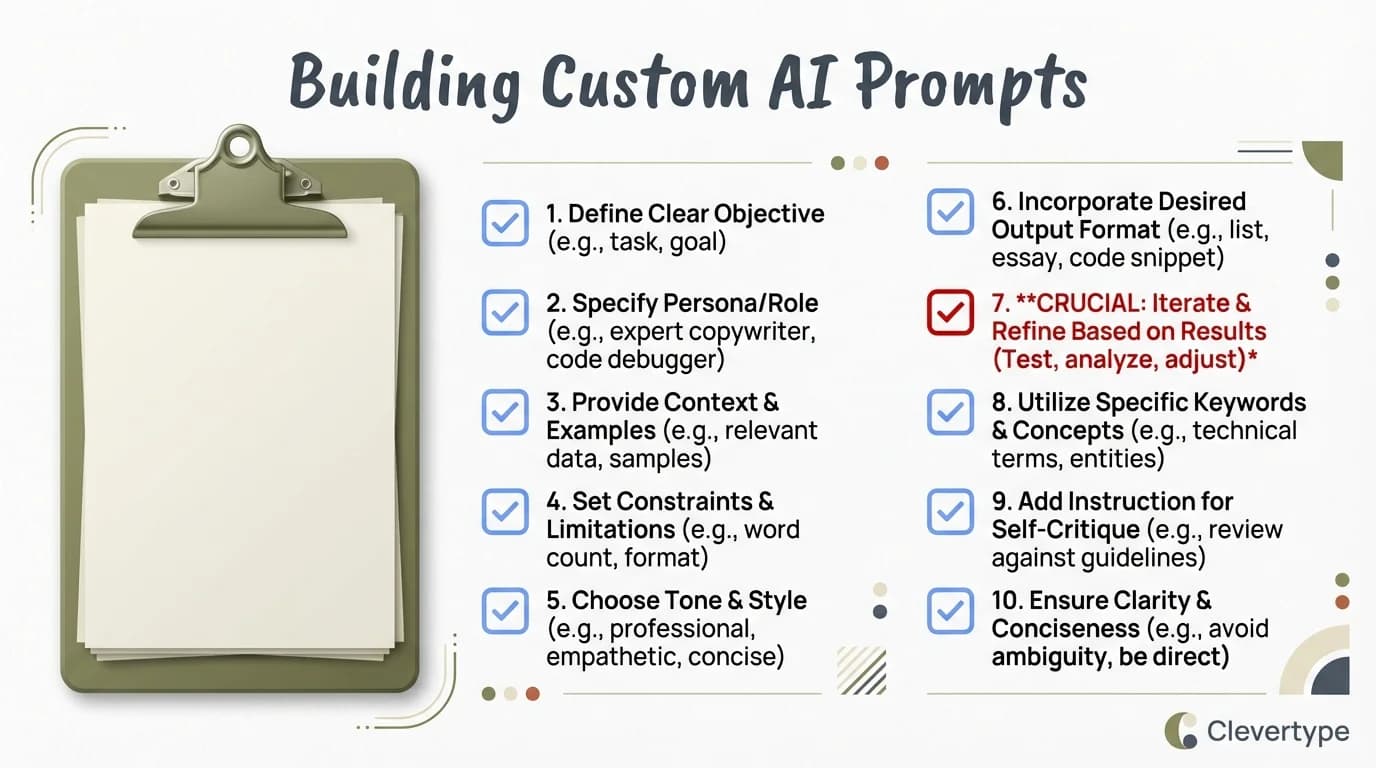
Follow this checklist to create powerful custom prompts that transform your AI keyboard into a personalized writing assistant
Examples of Useful Custom Prompts for Different Scenarios
Let's look at some real-world examples of custom prompts that I've found super useful. Feel free to use these as starting points for your own!
Business Communication Prompt
Write a professional email response to a client. Maintain a friendly but formal tone. Address their concerns directly. Keep it concise (under 150 words). Include a clear next step or call to action. Sign off with "Best regards, [Your Name]".
This prompt is great for quickly responding to client emails while maintaining a consistent professional tone.
Social Media Content Prompt
Create an engaging social media post about [topic]. Use a conversational tone with 1-2 emojis. Include a question to encourage engagement. Keep it under 280 characters for Twitter compatibility. Add relevant hashtags at the end.
I use variations of this prompt to keep my social media content consistent and engaging without spending hours crafting each post.
Meeting Summary Prompt
Summarize the key points from my meeting notes below. Format as bullet points under these headings: Decisions Made, Action Items (with owner and deadline), Open Questions. Keep each bullet concise and action-oriented.

Meeting notes: [paste your rough notes here]
This has been a lifesaver for quickly creating and sharing meeting summaries that everyone can easily digest.
Creative Writing Prompt
Help me continue my story. Match the existing tone and style. Add descriptive details and dialogue. Advance the plot but end with a mini-cliffhanger to keep readers engaged. Write approximately 200 words.

My story so far: [paste your story beginning]
Great for overcoming writer's block when working on creative projects!
Personal Assistant Prompt
Act as my personal assistant. Review my schedule below and draft a message to decline this meeting request. Suggest 2-3 alternative times when I'm available. Be polite but direct. Mention that the topic is important to me.

My schedule: [paste calendar details]
Meeting request: [paste request details]
This prompt helps manage your calendar and communications without spending mental energy crafting the perfect response.
Advanced Techniques for Power Users
Once you've mastered the basics, there are some advanced techniques that can take your custom prompts to the next level.
Prompt Chaining
This involves creating a series of prompts that build on each other. For example:
- First prompt: Generate ideas for a project
- Second prompt: Expand on idea #2 from the previous response
- Third prompt: Create an action plan for implementing the expanded idea
This approach allows you to have more complex interactions with your AI assistant while keeping each individual prompt focused and effective.
Contextual Variables
In 2026, most advanced AI keyboards support dynamic variables that get filled in at runtime. This makes your prompts incredibly flexible without sacrificing precision. For example:
Write a follow-up email to {{contact_name}} regarding our meeting on {{meeting_date}} about {{meeting_topic}}. Reference our agreement to {{action_item}} by {{deadline}}.When you trigger this prompt, the keyboard will intelligently prompt you for each variable. Some keyboards even auto-fill variables from your calendar or recent messages, saving you even more time. It's this kind of smart integration that makes 2026's AI keyboards feel truly assistive.
Persona-Based Prompts
You can create prompts that instruct the AI to adopt specific personas or writing styles:
Write as if you are a friendly but knowledgeable teacher explaining {{topic}} to a beginner. Use simple analogies and break down complex concepts. Ask check-in questions throughout to ensure understanding.This technique is particularly useful for educational content or when you need to communicate complex information to different audiences.
Feedback Loops
Include instructions in your prompts for how to improve the AI's responses:
After generating your initial response, review it for clarity and conciseness. Identify any jargon or complex sentences and simplify them. Ensure all key points are addressed.
This meta-instruction helps the AI self-edit and generally produces more polished results.
Privacy and Security Considerations
When working with AI keyboards and custom prompts, privacy should always be a top concern. Here's what you need to know to keep your data safe.
First off, understand how your keyboard app handles data. Some apps process everything on-device, which is generally more private, while others send data to cloud servers. Check the privacy policy of your chosen app - it's boring, I know, but super important.
Be careful about what information you include in your prompts. Avoid putting highly sensitive data like passwords, financial details, or confidential business information in your custom prompts. Remember that these prompts are usually stored somewhere, either on your device or in the cloud.
Most AI keyboards offer privacy settings that you should review and configure. Look for options like:
- Incognito mode for sensitive typing
- Data retention policies
- Options to exclude certain apps from AI features
- Controls for what data is shared for model improvement
CleverType and several other AI keyboard apps have made privacy a priority, but settings can vary widely between apps.
If you're using custom prompts in a professional context, make sure you're complying with your organization's data policies. Some companies have specific rules about using AI tools with work-related information.
One practical tip: create a test prompt specifically designed to check what information your AI remembers from previous interactions. This can help you understand the data retention practices of your keyboard app.
Troubleshooting Common Issues
Even with the best setup, you'll occasionally run into issues with your custom prompts. Here's how to fix the most common problems.
Problem: AI generates irrelevant or off-topic responses
Solution: Your prompt might be too vague. Add more specific instructions and constraints. Also, check if you're providing enough context for the AI to understand what you're asking for.
Problem: Responses are too long or too short
Solution: Explicitly specify the desired length in your prompt. For example, "Write a concise response (about 3-4 sentences)" or "Provide a detailed explanation (approximately 300 words)."
Problem: AI doesn't match your writing style
Solution: Include examples of your writing style in the prompt. You can say something like "Write in my style, which is typically conversational with short sentences and occasional humor, like this example: [insert your writing sample]."
Problem: Custom prompt works sometimes but not others
Solution: Your prompt might be too context-dependent. Make it more robust by accounting for different scenarios. Alternatively, create multiple versions of the prompt for different contexts.
Problem: AI repeatedly makes the same mistakes
Solution: Add specific instructions to avoid those mistakes. For example, "Do not use jargon or technical terms" or "Always include pricing information."
If you're still having trouble, try breaking complex prompts into simpler ones. Sometimes asking the AI to do too many things at once can confuse it.
Also, remember that different AI keyboards have different capabilities. What works perfectly on one app might need adjustments on another.
Integrating Custom Prompts into Your Daily Workflow
Having great custom prompts is one thing, but integrating them seamlessly into your daily workflow is what really saves time and reduces friction.
Start by identifying your most frequent typing tasks and create custom prompts for those first. The 80/20 rule applies here - focus on the 20% of writing tasks that take up 80% of your time.
Assign easy-to-remember shortcuts or gestures to your most-used prompts. In CleverType, you can create text shortcuts like "/meeting" that expand into your full custom prompt. This makes triggering them lightning fast.
Consider organizing your prompts by context or app. For example, have a set of prompts for email, another for social media, and another for creative writing. Some AI keyboards even let you automatically activate different prompt sets based on which app you're using.
Create a habit of reviewing and refining your prompts monthly. As you use them, you'll notice ways to improve them or new scenarios you hadn't considered. Keep a note on your phone where you jot down ideas for new prompts or improvements as they occur to you.
Gradually introduce new prompts rather than creating dozens at once. This gives you time to get comfortable with each one and integrate it into your workflow naturally.
One approach I've found helpful is "prompt templates" - creating generic versions of prompts that you can quickly modify for specific situations. For example, a template for responding to different types of customer inquiries that you can quickly customize for the specific situation.
What's New in 2026 and What's Coming Next
AI keyboards have come incredibly far in just the past year. What we dreamed about in 2025 is now reality, and the innovations keep coming.
Multi-modal prompts are now mainstream. You can create prompts that work with text, images, and even voice simultaneously. Need to draft a product description? Just snap a photo, speak your requirements, and your custom prompt handles the rest. This wasn't science fiction—it's how many people work today.
Personalization has reached new heights. Modern AI keyboards learn your writing style passively, picking up on your preferences without explicit training. They notice that you prefer shorter sentences in emails but longer, flowing paragraphs in creative work. They remember that you always sign off with "Cheers" to colleagues but "Best regards" to clients. This contextual awareness makes custom prompts feel genuinely intuitive.
The shift to on-device processing has been revolutionary for privacy. Your custom prompts now run locally on your phone, meaning faster responses and zero data sent to external servers. This advancement has made privacy-conscious users much more comfortable with AI keyboard adoption.
Voice integration has become seamless. You can now create, edit, and trigger custom prompts entirely hands-free, which is perfect for when you're driving, cooking, or otherwise occupied.
Looking ahead, we're seeing early experiments with predictive prompting—where your keyboard suggests relevant custom prompts based on what you're typing and who you're messaging. Imagine starting an email and having your keyboard recommend "Use client onboarding prompt" before you even think to trigger it.
The next frontier? True cross-device synchronization where your custom prompts follow you from phone to tablet to laptop, creating a unified writing experience across your entire digital ecosystem. Some keyboards are already testing this, and it looks incredibly promising.
Frequently Asked Questions
Q: Do I need technical skills to create custom AI prompts?
A: Not at all! Creating custom prompts is as simple as writing clear instructions in plain English. You don't need any coding knowledge—just describe what you want the AI to do, provide context, and specify your preferred output format. Start with simple prompts and gradually experiment with more complex ones as you get comfortable.
Q: How long does it take to see real benefits from custom prompts?
A: Most people notice immediate time savings with their first custom prompt. However, the real transformation happens after 2-3 weeks when you've built a library of 5-10 prompts for your most common tasks. At that point, you'll likely save several hours per week on routine communications and writing tasks.
Q: Are custom prompts private, or can others see them?
A: Your custom prompts are private by default in most AI keyboard apps. They're stored either locally on your device or in your personal cloud account. In 2026, many keyboards process prompts entirely on-device, meaning they never leave your phone. Always check your keyboard's privacy settings to understand exactly how your data is handled.
Q: Can I use the same custom prompts across different AI keyboards?
A: While there's no universal standard yet, many AI keyboards in 2026 allow you to export and import prompts. You can typically copy the prompt text and paste it into another keyboard's custom prompt settings. Some platforms are working on standardized formats that would make this even easier in the future.
Q: What's the difference between a prompt and a text shortcut?
A: Text shortcuts are static replacements (like typing "addr" to insert your full address). Custom prompts are dynamic AI instructions that generate different outputs based on context. Prompts can understand your input, adapt to different situations, and create unique responses each time, making them far more powerful than simple text expansion.
Q: How often should I update my custom prompts?
A: Review your prompts monthly to refine them based on real-world use. As you notice patterns in how the AI responds, you can adjust your instructions for better results. However, don't feel pressured to constantly tweak working prompts—if it's producing good results, let it be and focus on creating new prompts for other scenarios.
Q: Can custom prompts work offline?
A: This depends on your AI keyboard. Many modern keyboards in 2026 use on-device AI models that work completely offline once downloaded. Others require an internet connection to process prompts on cloud servers. Check your keyboard's specifications—offline capability is becoming increasingly common and is a huge advantage for privacy and reliability.
Conclusion: Building Your Personal AI Assistant
Creating custom prompts for your AI keyboard isn't just about efficiency—it's about building a personalized assistant that understands how you communicate and what you need.
We've covered a lot of ground in this guide, from the basics of what custom prompts are to advanced techniques for power users. The key takeaway? Start simple, be specific in your instructions, and refine based on results.
Your first custom prompts don't need to be perfect. Like any skill, prompt crafting improves with practice. Begin with a few prompts for your most common writing tasks, and expand from there as you get comfortable with the process.
Remember that the goal isn't to replace your own voice or thinking, but to handle routine communications more efficiently so you can focus your creative energy where it matters most. The best AI assistants amplify your capabilities rather than substitute for them.
As AI keyboard technology continues to advance, the possibilities for custom assistants will only grow. By developing your prompt-crafting skills now, you'll be well-positioned to take advantage of these improvements as they arrive.
I'd love to hear about the custom prompts you create and how they help your daily typing! Share your experiences and we can all learn from each other's approaches.
Ready to get started? Choose an AI keyboard app with customization features, create your first prompt following our guide, and begin building your personal AI assistant today!